
If your Vestaboard Note needs to reconnect to Wi-Fi, you'll need to enter Recovery Mode. The process differs slightly depending on whether you have a Framed or Frameless model.
Follow the instructions below for your specific setup.
Before You Begin
- Make sure your preferred Wi-Fi network is active and functioning.
- Stay within about 10 feet of your Vestaboard Note, and ensure your mobile device is connected to the same network you want your Note to join.
- Confirm that location services and local network access are enabled on your device.
- For private networks, double-check your Wi-Fi password.
Initiate Recovery Mode
If your Vestaboard Note has a frame, you'll need to remove both the mask and fascia:
- Remove the optional frame from the front of the display.
- Gently lift the fascia off your Vestaboard Note for about 10 seconds.
- Reattach the fascia and frame.
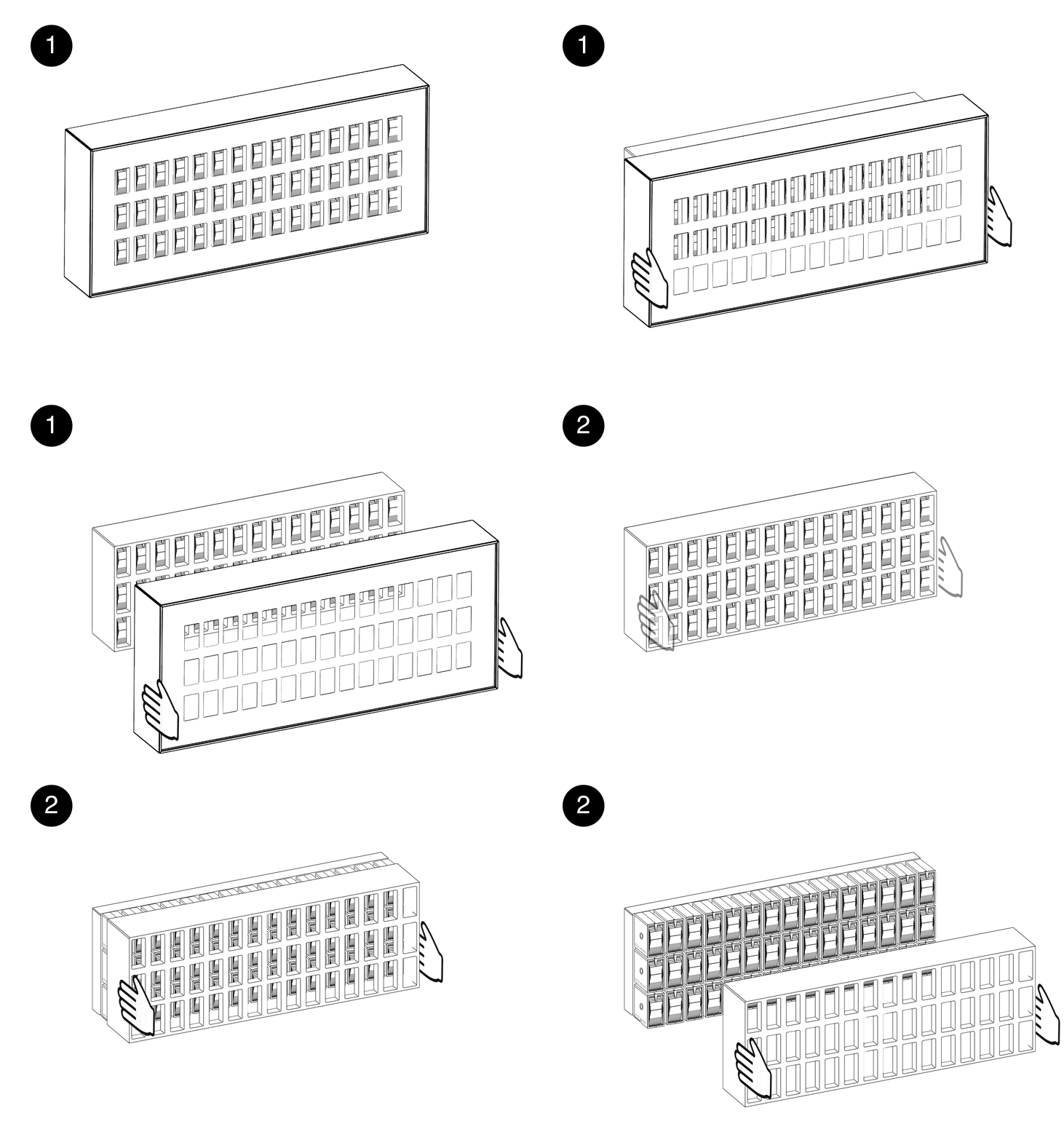
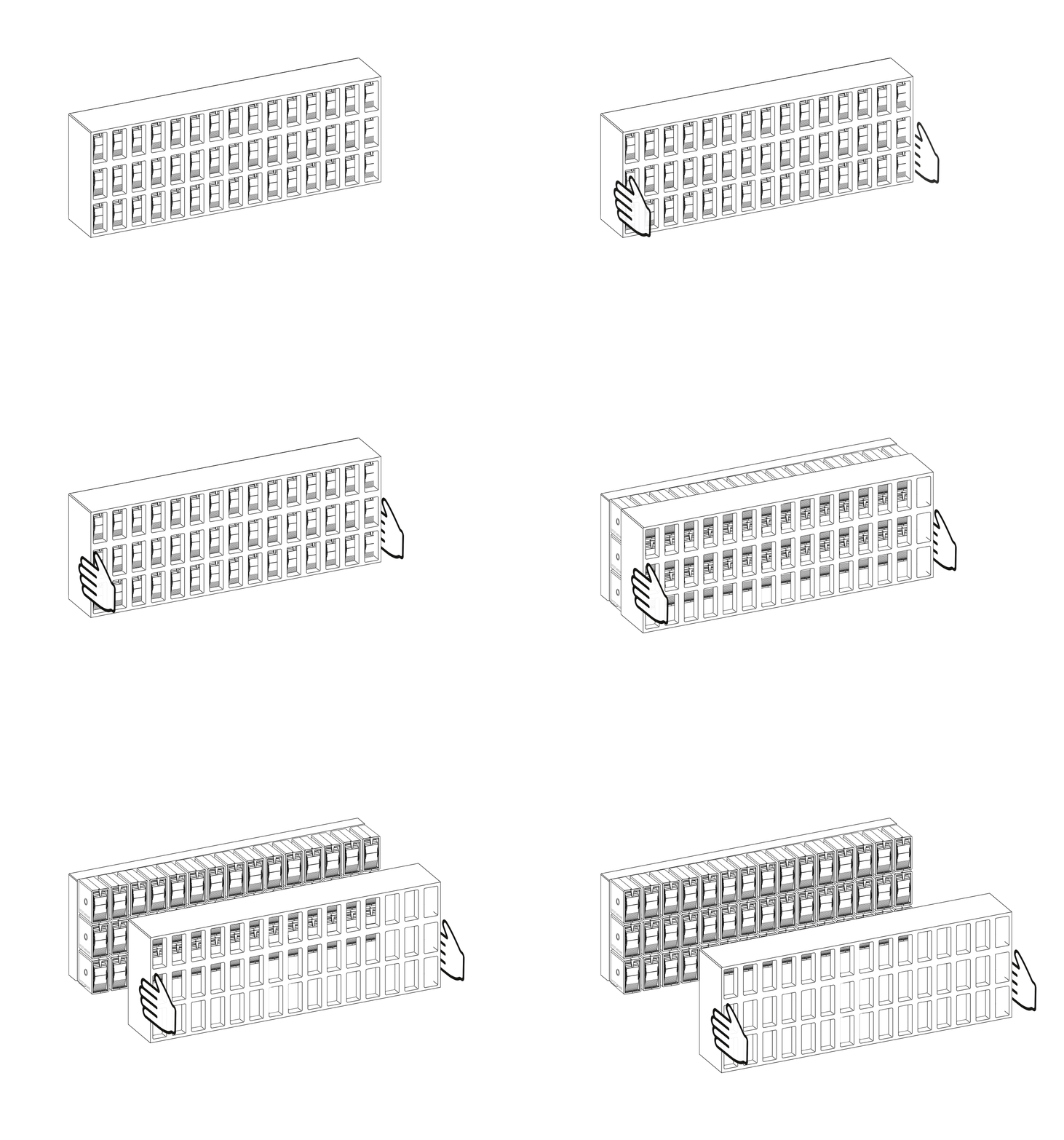
If your Vestaboard Note is the frameless version:
- Gently lift the fascia off your Vestaboard Note for about 10 seconds.
- Reattach the fascia.
Connect Using the Mobile App
Once a temporary hotspot (e.g., Vestaboard-XXXXXXXX) appears in your mobile device's Wi-Fi list, your Note is in Recovery Mode and ready to reconnect. Do not connect to the hotspot directly.
- Open the mobile app on a phone with active cellular service.
- Tap the gear icon in the lower-right corner to access Settings, then select Connected Network.
- Follow the prompts to connect your Vestaboard Note to Wi-Fi.
- After connecting, allow up to five minutes for the app to show an updated Online status.
Important: Do not delete the Vestaboard from your account or attempt to reconnect prematurely.
If You Encounter Issues
- Hotspot not appearing: Power cycle your Vestaboard Note by unplugging and plugging it back in, then try initiating Recovery Mode again.
- Still having trouble: Open a support ticket or schedule a troubleshooting session with our team.
Common Issues to Check
- Location services aren't enabled on your mobile device.
- Local network access isn't granted on your mobile device.
- The Wi-Fi password entered is incorrect.